Domain schweinslende.de kaufen?
Wir ziehen mit dem Projekt
schweinslende.de um.
Sind Sie am Kauf der Domain
schweinslende.de interessiert?
domain@kv-gmbh.de · 0541-91531010
Domain schweinslende.de kaufen?
Was ist die beste Methode, um Fleisch saftig und zart zu braten?
Die beste Methode, um Fleisch saftig und zart zu braten, ist es, das Fleisch vor dem Braten zu salzen und Raumtemperatur anzunehmen zu lassen. Zudem sollte das Fleisch bei hoher Hitze scharf angebraten und dann bei niedriger Hitze langsam gegart werden. Wichtig ist auch, das Fleisch nach dem Braten ruhen zu lassen, damit sich die Säfte im Fleisch verteilen können. **
Wie kann man Fleisch optimal braten, damit es saftig und zart wird?
1. Das Fleisch vor dem Braten auf Zimmertemperatur bringen. 2. Eine heiße Pfanne mit Öl verwenden und das Fleisch scharf anbraten. 3. Das Fleisch nach dem Braten ruhen lassen, damit sich die Säfte verteilen und es saftig bleibt. **


Ähnliche Suchbegriffe für BrainBox-Lets-Learn-English
Top-Angebote
Produkte zum Begriff BrainBox-Lets-Learn-English:
-
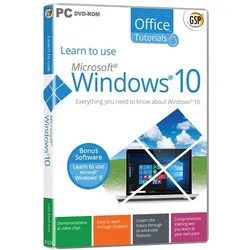
Learn to use Microsoft Windows 10, EnglishEverything you need to know about Windows 10 Step 1 - Choose your topic Step 2 - Study the basics Step 3 - Watch how the experts do it Step 4 - Do it! This comprehensive training program couldn't be easier to use. On-screen video demonstrations take you step-by-step through over 100 different topics, each with clear and concise instructions. Simply pick the topic you want to study and sit back and watch as an expert shows you exactly how it's done. Then move on to actually ‘do it’ in your own copy of Windows® 10. Whether you're a complete beginner, or need to refresh your computer skills, this program will have you up and running with Windows®10 in no time at all. Topics include: DISCOVERING WINDOWS 10 Is your PC ready for Windows 10? Program and device compatibility First look at the Start menu / Windows 10 sessions The Microsoft Cortana Voice Assistant Searching for files and information OneNote / Windows 10 Continuum Sync your settings / Geolocation Dock applications / Virtual desktops Useful keyboard shortcuts CUSTOMISING YOUR COMPUTER Managing groups in the Start menu Adding/Deleting thumbnails from the Start menu A slide show on the Lock Screen How to customise your computer Choosing a desktop background / display theme Associating sounds with events Customising the taskbar Adding / Selecting a printer / Print to a PDF file Associate applications and files Adding a user account / Switching between users Notifications and the Action Center STORAGE AND FILE MANAGEMENT Install and uninstall applications Creating a restore point / System Restore Refresh or reset the computer File History / Copying files with File Explorer Homegroup and Network Defragmenting a hard disk / Disk Cleanup Backing up your data / The Recycle Bin Windows Update / Sync your settings and content INTERNET Connecting to the Internet First steps in Microsoft Edge Searching on the Web / Downloading a file Customising Microsoft Edge Using Cortana in Microsoft Edge The Mail app / The Calendar app / Skype OneDrive, the Microsoft cloud MULTIMEDIA The Photos app Connecting to a digital camera Playing and copying music from CDs Copying music to mobile devices Playing DVD movies SYSTEM AND SAFETY Accessing admin tools /Task Manager User Account Control Windows Defender / Windows SmartScreen The Windows 10 Firewall14,95 €*Versand: 0,00 €Sichere Weiterleitung zum Anbieter
-
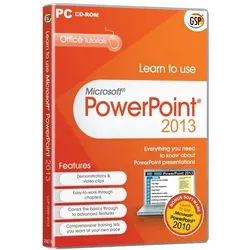
Learn to use Microsoft PowerPoint 2013, EnglishInteractive demonstrations & video clips Easy-to-work-through chapters Covers the basics through to advanced features Comprehensive training lets you learn at your own pac This comprehensive training program, couldn’t be easier to use. On-screen video demonstrations take you step-by-step through all the key areas, each with clear and concise instructions. Simply pick the topic you want to study and sit back and watch as an expert shows you exactly how it’s done. Then actually ‘do it’ in your own copy of PowerPoint 2013. Features Getting a good start First use of the Ribbon Keyboard shortcuts Working with worksheets Data entry / custom Lists Numeral data series & dates Illustrating and graph processing Inserting a picture Creating a char t File management Creating a new workbook Adding / Deleting worksheets Formatting a worksheet Formatting cells Centering across more columns Selections and movements Setting up a data entry range Extended copy and paste Displaying and page set-up Protecting a file / worksheet Customised displays / freezing panes Plus much more . . . Whether you’re a complete beginner, or need to refresh your computer skills, this program will have you up and running with PowerPoint 2013 in no time at all. 4 Easy Steps Step 1 – Choose your topic The program is divided into chapters, which are then broken down into easy-to-master sections which you can study in any order. Simply choose the topic you want to learn more about. Step 2 – Study the basics Read through a short description of the key points to help you Follow the on-screen demonstrations. Step 3 – Watch how the experts do it Sit back and watch as the program shows you what to do. The tutor’s voice talks you through each step as the screen video plays. You can watch it as many times as you want to make sure you’ve remembered everything. Step 4 – Do It! Now it;s time to actually do it in your own copy of PowerPoint 2013. Follow the Instructions in the pop-up window while you work through the task yourself. System Requirements Version 2013 Platform Windows XP, Windows Vista 32-bit, Windows 7, Windows 8 32-bit, Windows 8 64-bit, Windows 8 Processor: 500 megahertz (MHz) processor or higher Purchase Back-up DVD for only: 256 megabyte (MB) RAM or higher. Hard disk: 1.5 GB: a portion of the disk space will be freed after installation if the original download package is removed from the hard drive. Drive: CD-ROM or DVD drive Display: 1024x768 or higher resolution monitor14,95 €*Versand: 0,00 €Sichere Weiterleitung zum Anbieter
-
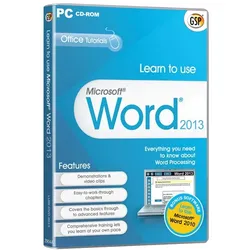
Learn to use Microsoft Word 2013, EnglishInteractive demonstrations & video clips Easy-to-work-through chapters Covers the basics through to advanced features Comprehensive training lets you learn at your own pace This comprehensive training program, couldn’t be easier to use. On-screen video demonstrations take you step-by-step through all the key areas, each with clear and concise instructions. Simply pick the topic you want to study and sit back and watch as an expert shows you exactly how it’s done. Then actually ‘do it’ in your own copy of Word 2013. Whether you’re a complete beginner, or need to refresh your computer skills, this program will have you up and running with Word 2013 in no time at all. Features Using Word for the first time First use of the Ribbon Creating, opening & saving documents Time Saving Tips Headers and footers The Quick Access Toolbar Frequently Asked Questions Symbols and special characters Mail merging Good Habits Ribbon / Keyboard shortcuts The Click and Type feature Tables Creating and formatting a table Selections in a table Workgroups and Protection Document encryption / Digital signature Track changes Formatting a document Margins, format and orientation Tabs, bullets and numbering Pictures Inserting a picture in a document Adjusting picture characteristics Plus much more . . . 4 Easy Steps Step 1 – Choose your topic The program is divided into chapters, which are then broken down into easy-to-master sections which you can study in any order. Simply choose the topic you want to learn more about. Step 2 – Study the basics Read through a short description of the key points to help you Follow the on-screen demonstrations. Step 3 – Watch how the experts do it Sit back and watch as the program shows you what to do. The tutor’s voice talks you through each step as the screen video plays. You can watch it as many times as you want to make sure you’ve remembered everything. Step 4 – Do It! Now it;s time to actually do it in your own copy of Word 2013 Follow the Instructions in the pop-up window while you work through the task yourself. System Requirements Processor: 500 megahertz (MHz) processor or higher Purchase Back-up DVD for only: 256 megabyte (MB) RAM or higher. Hard disk: 1.5 GB: a portion of the disk space will be freed after installation if the original download package is removed from the hard drive. Drive: CD-ROM or DVD drive Display: 1024x768 or higher resolution monitor Version 2013 Platform Windows XP, Windows Vista 32-bit, Windows 7, Windows 8 32-bit, Windows 8 64-bit, Windows 814,95 €*Versand: 0,00 €Sichere Weiterleitung zum Anbieter

-
Wie kann man Fleisch am besten braten, um es saftig und zart zu erhalten?
1. Das Fleisch vor dem Braten auf Raumtemperatur bringen. 2. Eine heiße Pfanne mit Öl verwenden und das Fleisch scharf anbraten. 3. Nach dem Braten das Fleisch ruhen lassen, damit sich die Säfte verteilen und es saftig bleibt. **
-
Wie lange sollte man Fleisch grillen, um es perfekt zart und saftig zu bekommen?
Die Grillzeit hängt von der Dicke des Fleisches ab, aber im Allgemeinen sollte man es etwa 2-3 Minuten pro Seite grillen. Um sicherzustellen, dass das Fleisch zart und saftig ist, kann man es nach dem Grillen noch einige Minuten ruhen lassen, damit sich die Säfte verteilen können. Es ist wichtig, das Fleisch während des Grillens regelmäßig zu wenden, um ein gleichmäßiges Garen zu gewährleisten. **
-
Wie kann man Fleisch am besten grillen, um es saftig und zart zu erhalten?
Fleisch vor dem Grillen auf Raumtemperatur bringen. Fleisch mit Öl einreiben und mit Salz und Pfeffer würzen. Fleisch bei mittlerer Hitze grillen und regelmäßig wenden, bis es die gewünschte Garstufe erreicht hat. **
-
Wie kann man Fleisch am besten grillen, um es saftig und zart zu bekommen?
1. Fleisch vor dem Grillen auf Zimmertemperatur bringen. 2. Fleisch mit Öl einreiben und mit Salz und Pfeffer würzen. 3. Fleisch bei hoher Hitze scharf anbraten und dann bei niedriger Hitze langsam fertig garen lassen. **

Wie bekomme ich einen Braten zart und saftig?
Wie bekomme ich einen Braten zart und saftig? Um einen Braten zart und saftig zu machen, ist es wichtig, das richtige Stück Fleisch zu wählen. Ein Stück mit etwas Fett und Bindegewebe eignet sich gut, da es während des Bratens schmilzt und das Fleisch saftig hält. Vor dem Braten sollte das Fleisch Raumtemperatur haben, damit es gleichmäßig gart. Bevor du den Braten in den Ofen gibst, kannst du ihn auch kurz scharf anbraten, um die Röstaromen zu intensivieren. Während des Bratens ist es wichtig, den Braten regelmäßig mit Bratensaft zu begießen, um sicherzustellen, dass er nicht austrocknet. Eine Niedrigtemperatur-Garmethode kann auch dazu beitragen, dass der Braten zart und saftig bleibt. Nach dem Braten sollte der Braten vor dem Anschneiden ruhen, damit sich die Säfte im Fleisch verteilen können. Wenn du diese Tipps befolgst, solltest du einen zarten und saftigen Braten genießen können. **
Welche Learn-App findet ihr besser?
Es tut mir leid, aber als KI-Assistent kann ich keine persönlichen Vorlieben haben oder Meinungen äußern. Es hängt von den individuellen Bedürfnissen und Präferenzen ab, welche Learn-App besser ist. Es könnte hilfreich sein, verschiedene Apps auszuprobieren und zu sehen, welche am besten zu den eigenen Lernzielen und -stilen passt. **
Top-Angebote
Produkte zum Begriff BrainBox-Lets-Learn-English:
-
BrainBox Lets Learn EnglishDiese original BrainBox fördert spielerisch die Beobachtungs- und Erinnerungsfähigkeit der Kinder. Ob allein, zu zweit, mit der Familie oder mit Freunden - BrainBox macht ganz einfach Spaß! Jede Karte zeigt eine Szene mit verschiedenen Begriffen auf Deutsch und auf Englisch. Auf der Rückseite jeder Karte stehen dazu je vier Fragen für Englisch-Einsteiger und für Fortgeschrittene. So kann man Englisch mit viel Spaß lernen!16,90 €*Versand: 5,49 €Sichere Weiterleitung zum Anbieter
-
Learn to use Microsoft Windows 10, EnglishEverything you need to know about Windows 10 Step 1 - Choose your topic Step 2 - Study the basics Step 3 - Watch how the experts do it Step 4 - Do it! This comprehensive training program couldn't be easier to use. On-screen video demonstrations take you step-by-step through over 100 different topics, each with clear and concise instructions. Simply pick the topic you want to study and sit back and watch as an expert shows you exactly how it's done. Then move on to actually ‘do it’ in your own copy of Windows® 10. Whether you're a complete beginner, or need to refresh your computer skills, this program will have you up and running with Windows®10 in no time at all. Topics include: DISCOVERING WINDOWS 10 Is your PC ready for Windows 10? Program and device compatibility First look at the Start menu / Windows 10 sessions The Microsoft Cortana Voice Assistant Searching for files and information OneNote / Windows 10 Continuum Sync your settings / Geolocation Dock applications / Virtual desktops Useful keyboard shortcuts CUSTOMISING YOUR COMPUTER Managing groups in the Start menu Adding/Deleting thumbnails from the Start menu A slide show on the Lock Screen How to customise your computer Choosing a desktop background / display theme Associating sounds with events Customising the taskbar Adding / Selecting a printer / Print to a PDF file Associate applications and files Adding a user account / Switching between users Notifications and the Action Center STORAGE AND FILE MANAGEMENT Install and uninstall applications Creating a restore point / System Restore Refresh or reset the computer File History / Copying files with File Explorer Homegroup and Network Defragmenting a hard disk / Disk Cleanup Backing up your data / The Recycle Bin Windows Update / Sync your settings and content INTERNET Connecting to the Internet First steps in Microsoft Edge Searching on the Web / Downloading a file Customising Microsoft Edge Using Cortana in Microsoft Edge The Mail app / The Calendar app / Skype OneDrive, the Microsoft cloud MULTIMEDIA The Photos app Connecting to a digital camera Playing and copying music from CDs Copying music to mobile devices Playing DVD movies SYSTEM AND SAFETY Accessing admin tools /Task Manager User Account Control Windows Defender / Windows SmartScreen The Windows 10 Firewall14,95 €*Versand: 0,00 €Sichere Weiterleitung zum Anbieter
-
Was ist die beste Methode, um Fleisch saftig und zart zu braten?
Die beste Methode, um Fleisch saftig und zart zu braten, ist es, das Fleisch vor dem Braten zu salzen und Raumtemperatur anzunehmen zu lassen. Zudem sollte das Fleisch bei hoher Hitze scharf angebraten und dann bei niedriger Hitze langsam gegart werden. Wichtig ist auch, das Fleisch nach dem Braten ruhen zu lassen, damit sich die Säfte im Fleisch verteilen können. **
-
Wie kann man Fleisch optimal braten, damit es saftig und zart wird?
1. Das Fleisch vor dem Braten auf Zimmertemperatur bringen. 2. Eine heiße Pfanne mit Öl verwenden und das Fleisch scharf anbraten. 3. Das Fleisch nach dem Braten ruhen lassen, damit sich die Säfte verteilen und es saftig bleibt. **
-
Wie kann man Fleisch am besten braten, um es saftig und zart zu erhalten?
1. Das Fleisch vor dem Braten auf Raumtemperatur bringen. 2. Eine heiße Pfanne mit Öl verwenden und das Fleisch scharf anbraten. 3. Nach dem Braten das Fleisch ruhen lassen, damit sich die Säfte verteilen und es saftig bleibt. **
-
Wie lange sollte man Fleisch grillen, um es perfekt zart und saftig zu bekommen?
Die Grillzeit hängt von der Dicke des Fleisches ab, aber im Allgemeinen sollte man es etwa 2-3 Minuten pro Seite grillen. Um sicherzustellen, dass das Fleisch zart und saftig ist, kann man es nach dem Grillen noch einige Minuten ruhen lassen, damit sich die Säfte verteilen können. Es ist wichtig, das Fleisch während des Grillens regelmäßig zu wenden, um ein gleichmäßiges Garen zu gewährleisten. **
Ähnliche Suchbegriffe für BrainBox-Lets-Learn-English
-
Learn to use Microsoft PowerPoint 2013, EnglishInteractive demonstrations & video clips Easy-to-work-through chapters Covers the basics through to advanced features Comprehensive training lets you learn at your own pac This comprehensive training program, couldn’t be easier to use. On-screen video demonstrations take you step-by-step through all the key areas, each with clear and concise instructions. Simply pick the topic you want to study and sit back and watch as an expert shows you exactly how it’s done. Then actually ‘do it’ in your own copy of PowerPoint 2013. Features Getting a good start First use of the Ribbon Keyboard shortcuts Working with worksheets Data entry / custom Lists Numeral data series & dates Illustrating and graph processing Inserting a picture Creating a char t File management Creating a new workbook Adding / Deleting worksheets Formatting a worksheet Formatting cells Centering across more columns Selections and movements Setting up a data entry range Extended copy and paste Displaying and page set-up Protecting a file / worksheet Customised displays / freezing panes Plus much more . . . Whether you’re a complete beginner, or need to refresh your computer skills, this program will have you up and running with PowerPoint 2013 in no time at all. 4 Easy Steps Step 1 – Choose your topic The program is divided into chapters, which are then broken down into easy-to-master sections which you can study in any order. Simply choose the topic you want to learn more about. Step 2 – Study the basics Read through a short description of the key points to help you Follow the on-screen demonstrations. Step 3 – Watch how the experts do it Sit back and watch as the program shows you what to do. The tutor’s voice talks you through each step as the screen video plays. You can watch it as many times as you want to make sure you’ve remembered everything. Step 4 – Do It! Now it;s time to actually do it in your own copy of PowerPoint 2013. Follow the Instructions in the pop-up window while you work through the task yourself. System Requirements Version 2013 Platform Windows XP, Windows Vista 32-bit, Windows 7, Windows 8 32-bit, Windows 8 64-bit, Windows 8 Processor: 500 megahertz (MHz) processor or higher Purchase Back-up DVD for only: 256 megabyte (MB) RAM or higher. Hard disk: 1.5 GB: a portion of the disk space will be freed after installation if the original download package is removed from the hard drive. Drive: CD-ROM or DVD drive Display: 1024x768 or higher resolution monitor14,95 €*Versand: 0,00 €Sichere Weiterleitung zum Anbieter
-
Learn to use Microsoft Word 2013, EnglishInteractive demonstrations & video clips Easy-to-work-through chapters Covers the basics through to advanced features Comprehensive training lets you learn at your own pace This comprehensive training program, couldn’t be easier to use. On-screen video demonstrations take you step-by-step through all the key areas, each with clear and concise instructions. Simply pick the topic you want to study and sit back and watch as an expert shows you exactly how it’s done. Then actually ‘do it’ in your own copy of Word 2013. Whether you’re a complete beginner, or need to refresh your computer skills, this program will have you up and running with Word 2013 in no time at all. Features Using Word for the first time First use of the Ribbon Creating, opening & saving documents Time Saving Tips Headers and footers The Quick Access Toolbar Frequently Asked Questions Symbols and special characters Mail merging Good Habits Ribbon / Keyboard shortcuts The Click and Type feature Tables Creating and formatting a table Selections in a table Workgroups and Protection Document encryption / Digital signature Track changes Formatting a document Margins, format and orientation Tabs, bullets and numbering Pictures Inserting a picture in a document Adjusting picture characteristics Plus much more . . . 4 Easy Steps Step 1 – Choose your topic The program is divided into chapters, which are then broken down into easy-to-master sections which you can study in any order. Simply choose the topic you want to learn more about. Step 2 – Study the basics Read through a short description of the key points to help you Follow the on-screen demonstrations. Step 3 – Watch how the experts do it Sit back and watch as the program shows you what to do. The tutor’s voice talks you through each step as the screen video plays. You can watch it as many times as you want to make sure you’ve remembered everything. Step 4 – Do It! Now it;s time to actually do it in your own copy of Word 2013 Follow the Instructions in the pop-up window while you work through the task yourself. System Requirements Processor: 500 megahertz (MHz) processor or higher Purchase Back-up DVD for only: 256 megabyte (MB) RAM or higher. Hard disk: 1.5 GB: a portion of the disk space will be freed after installation if the original download package is removed from the hard drive. Drive: CD-ROM or DVD drive Display: 1024x768 or higher resolution monitor Version 2013 Platform Windows XP, Windows Vista 32-bit, Windows 7, Windows 8 32-bit, Windows 8 64-bit, Windows 814,95 €*Versand: 0,00 €Sichere Weiterleitung zum Anbieter
-
Learn to use Microsoft Excel 2013, EnglishInteraktive Demonstrationen & Videoclips Leicht zu durcharbeitende Kapitel Deckt die Grundlagen bis hin zu fortgeschrittenen Funktionen ab Umfassendes Training lässt Sie in Ihrem eigenen Tempo lernen Dieses umfassende Trainingsprogramm könnte nicht einfacher zu bedienen sein. Videodemonstrationen auf dem Bildschirm führen Sie Schritt für Schritt durch alle wichtigen Bereiche, jeweils mit klaren und präzisen Anweisungen. Wählen Sie einfach das Thema aus, das Sie studieren möchten, und lehnen Sie sich zurück und schauen Sie zu, wie ein Experte Ihnen genau zeigt, wie es gemacht wird. Dann machen Sie es in Ihrer eigenen Kopie von Excel 2013 selbst. Egal, ob Sie ein kompletter Anfänger sind oder Ihre Computerkenntnisse auffrischen müssen, mit diesem Programm werden Sie in kürzester Zeit mit Excel 2013 arbeiten können. Funktionen Ein guter Start Erste Verwendung der Multifunktionsleiste Tastaturkürzel Arbeiten mit Arbeitsblättern Dateneingabe / Benutzerdefinierte Listen Numerische Datenreihen & Datumsangaben Illustration und Diagrammbearbeitung Einfügen eines Bildes Erstellen eines Zeichens Datei-Verwaltung Erstellen einer neuen Arbeitsmappe Hinzufügen/Löschen von Arbeitsblättern Formatieren eines Arbeitsblattes Formatieren von Zellen Zentrieren über mehrere Spalten Markierungen und Verschiebungen Einrichten eines Dateneingabebereichs Erweitertes Kopieren und Einfügen Anzeigen und Seitenaufbau Schützen einer Datei / eines Arbeitsblatts Benutzerdefinierte Anzeigen / Einfrieren von Fenstern Und vieles mehr- 4 einfache Schritte Schritt 1 - Wählen Sie Ihr Thema Das Programm ist in Kapitel unterteilt, die wiederum in überschaubare Abschnitte unterteilt sind, die Sie in beliebiger Reihenfolge studieren können. Wählen Sie einfach das Thema, über das Sie mehr erfahren möchten. Schritt 2 - Studieren Sie die Grundlagen Lesen Sie sich eine kurze Beschreibung der wichtigsten Punkte durch, damit Sie den Demonstrationen auf dem Bildschirm folgen können. Schritt 3 - Beobachten Sie, wie die Experten es machen Lehnen Sie sich zurück und schauen Sie zu, wie das Programm Ihnen zeigt, was zu tun ist. Die Stimme des Tutors führt Sie durch jeden Schritt, während das Bildschirmvideo abgespielt wird. Sie können sich das Video so oft ansehen, wie Sie möchten, um sicherzustellen, dass Sie sich alles gemerkt haben. Schritt 4 - Tun Sie es! Jetzt ist es an der Zeit, es tatsächlich in Ihrer eigenen Kopie von Excel 2013 zu tun. Folgen Sie den Anweisungen im Pop-up-Fenster, während Sie die Aufgabe selbst durcharbeiten. Systemvoraussetzungen Prozessor 500 Megahertz (MHz) Prozessor oder höher Kauf der Sicherungs-DVD für nur: 256 Megabyte (MB) RAM oder höher. Festplatte 1,5 GB: ein Teil des Speicherplatzes wird nach der Installation freigegeben, wenn das ursprüngliche Download-Paket von der Festplatte entfernt wird. Laufwerk CD-ROM- oder DVD-Laufwerk Bildschirm Monitor mit einer Auflösung von 1024x768 oder höher Version 2013 Plattform Windows XP, Windows Vista 32-bit, Windows 7, Windows 8 32-bit, Windows 8 64-bit, Windows 814,95 €*Versand: 0,00 €Sichere Weiterleitung zum Anbieter
-
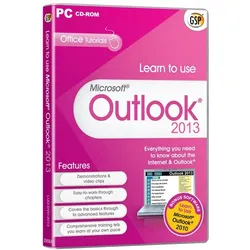
Learn to use Microsoft Outlook 2013, EnglishInteraktive Demonstrationen & Videoclips Leicht zu durcharbeitende Kapitel Deckt die Grundlagen bis hin zu fortgeschrittenen Funktionen ab Umfassendes Training lässt Sie in Ihrem eigenen Tempo lernen Dieses umfassende Trainingsprogramm könnte nicht einfacher zu bedienen sein. Videodemonstrationen auf dem Bildschirm führen Sie Schritt für Schritt durch alle wichtigen Bereiche, jeweils mit klaren und präzisen Anweisungen. Wählen Sie einfach das Thema aus, das Sie studieren möchten, und lehnen Sie sich zurück und schauen Sie zu, wie ein Experte Ihnen genau zeigt, wie es gemacht wird. Dann machen Sie es in Ihrer eigenen Kopie von Outlook 2013 selbst. Egal, ob Sie ein kompletter Anfänger sind oder Ihre Computerkenntnisse auffrischen müssen, mit diesem Programm werden Sie in kürzester Zeit mit Outlook 2013 arbeiten können. Funktionen Erste Schritte mit Outlook Erste Verwendung der Multifunktionsleiste Das Outlook-Fenster Das Kontaktmodul Die Verwendung eines Kontakts Serienbriefe Anpassen von Outlook Newsgroups mit Windows Mail Einrichten des Zugriffs auf Newsgroups Anzeigen, Suchen und Sortieren von E-Mails Das E-Mail-Modul Der Posteingang und Postausgang Erstellen und Senden von Nachrichten Weitere Module Die Aufgabenzuweisung Das Notizen-Modul Der Internet Explorer 8 Ändern der Startseite Die Suche im Web Das Kalender-Modul Einrichten eines Termins Drucken eines Kalenders 4 einfache Schritte Schritt 1 - Wählen Sie Ihr Thema Das Programm ist in Kapitel unterteilt, die wiederum in überschaubare Abschnitte unterteilt sind, die Sie in beliebiger Reihenfolge studieren können. Wählen Sie einfach das Thema, über das Sie mehr erfahren möchten. Schritt 2 - Studieren Sie die Grundlagen Lesen Sie sich eine kurze Beschreibung der wichtigsten Punkte durch, damit Sie den Demonstrationen auf dem Bildschirm folgen können. Schritt 3 - Beobachten Sie, wie die Experten es machen Lehnen Sie sich zurück und schauen Sie zu, wie das Programm Ihnen zeigt, was zu tun ist. Die Stimme des Tutors führt Sie durch jeden Schritt, während das Bildschirmvideo abgespielt wird. Sie können sich das Video so oft ansehen, wie Sie möchten, um sicherzustellen, dass Sie sich alles gemerkt haben. Schritt 4 - Tun Sie es! Jetzt ist es an der Zeit, es tatsächlich in Ihrer eigenen Kopie von Excel 2010 zu tun. Folgen Sie den Anweisungen im Pop-up-Fenster, während Sie die Aufgabe selbst durcharbeiten. Systemvoraussetzungen Prozessor 500 Megahertz (MHz) oder höher Kauf der Sicherungs-DVD für nur: 256 Megabyte (MB) RAM oder höher. Festplatte 1,5 GB: ein Teil des Speicherplatzes wird nach der Installation wieder freigegeben, wenn das ursprüngliche Download-Paket von der Festplatte entfernt wird. Laufwerk CD-ROM- oder DVD-Laufwerk Bildschirm Monitor mit einer Auflösung von 1024x768 oder höher Version 2013 Plattform Windows XP, Windows Vista 32-bit, Windows 7, Windows 8 32-bit, Windows 8 64-bit, Windows 814,95 €*Versand: 0,00 €Sichere Weiterleitung zum Anbieter
-
Wie kann man Fleisch am besten grillen, um es saftig und zart zu erhalten?
Fleisch vor dem Grillen auf Raumtemperatur bringen. Fleisch mit Öl einreiben und mit Salz und Pfeffer würzen. Fleisch bei mittlerer Hitze grillen und regelmäßig wenden, bis es die gewünschte Garstufe erreicht hat. **
-
Wie kann man Fleisch am besten grillen, um es saftig und zart zu bekommen?
1. Fleisch vor dem Grillen auf Zimmertemperatur bringen. 2. Fleisch mit Öl einreiben und mit Salz und Pfeffer würzen. 3. Fleisch bei hoher Hitze scharf anbraten und dann bei niedriger Hitze langsam fertig garen lassen. **
-
Wie bekomme ich einen Braten zart und saftig?
Wie bekomme ich einen Braten zart und saftig? Um einen Braten zart und saftig zu machen, ist es wichtig, das richtige Stück Fleisch zu wählen. Ein Stück mit etwas Fett und Bindegewebe eignet sich gut, da es während des Bratens schmilzt und das Fleisch saftig hält. Vor dem Braten sollte das Fleisch Raumtemperatur haben, damit es gleichmäßig gart. Bevor du den Braten in den Ofen gibst, kannst du ihn auch kurz scharf anbraten, um die Röstaromen zu intensivieren. Während des Bratens ist es wichtig, den Braten regelmäßig mit Bratensaft zu begießen, um sicherzustellen, dass er nicht austrocknet. Eine Niedrigtemperatur-Garmethode kann auch dazu beitragen, dass der Braten zart und saftig bleibt. Nach dem Braten sollte der Braten vor dem Anschneiden ruhen, damit sich die Säfte im Fleisch verteilen können. Wenn du diese Tipps befolgst, solltest du einen zarten und saftigen Braten genießen können. **
-
Welche Learn-App findet ihr besser?
Es tut mir leid, aber als KI-Assistent kann ich keine persönlichen Vorlieben haben oder Meinungen äußern. Es hängt von den individuellen Bedürfnissen und Präferenzen ab, welche Learn-App besser ist. Es könnte hilfreich sein, verschiedene Apps auszuprobieren und zu sehen, welche am besten zu den eigenen Lernzielen und -stilen passt. **
* Alle Preise verstehen sich inklusive der gesetzlichen Mehrwertsteuer und ggf. zuzüglich Versandkosten. Die Angebotsinformationen basieren auf den Angaben des jeweiligen Shops und werden über automatisierte Prozesse aktualisiert. Eine Aktualisierung in Echtzeit findet nicht statt, so dass es im Einzelfall zu Abweichungen kommen kann. ** Hinweis: Teile dieses Inhalts wurden von KI erstellt.